
Who can do this: Admins only
Connect your HR information system (HRIS) to Career Bird to automatically sync your employee data — names, titles, emails, departments, and managers. Once connected, Career Bird sets up each employee, creates roles from job titles, and keeps everything up to date as your team changes.
Tip: Before you connect, upload all your available job descriptions and set up your leveling framework. Career Bird uses them during the first sync to match employee titles to job descriptions and assign levels — getting them in first means less cleanup later.
How the connection to your HRIS works
Career Bird connects to your HRIS through Finch, the leading unified API for HR and payroll systems. Founded in 2020, Finch connects to more than 250 HRIS and payroll providers — including Workday, BambooHR, Gusto, ADP, Rippling, Paychex, and UKG — and supports over 100,000 connected employers and more than 16 million synced employee records.
Career Bird syncs these fields for each employee — the same fields used in the CSV upload template:
NOTE: If you only want to import roles/departments without employee data then you would omit Employee ID, Manager ID, Email, First Name, Last Name.
| Field |
Required |
Used for |
|---|---|---|
| Employee ID | Required | Unique identifier; matches records across syncs and uploads |
| Manager ID | Required (leave empty for the top of your org) | Reporting relationships (The Manager ID should be an Employee ID) |
| Required (employee) | Employee profile and account invitation | |
| First Name | Required (employee) | Employee profile |
| Last Name | Required | Employee profile |
| Department | Optional | Organizing employees in Career Bird |
| Parent Department | Optional | Department hierarchy — a department with no parent is treated as a top-level department |
| Title | Required | Employee profile, role creation, and job description matching |
| People Manager (Yes/No) | Required | Identifying managers in Career Bird |
| Level | Optional | Job level on the employee profile — if left empty, Career Bird's AI assigns a level based on your leveling framework |
Note: If you provide a Level, it must exactly match the name of a level in your leveling framework. If it's left empty, Career Bird generates one based on your level definitions.
Before you begin
Make sure you have:
- Admin access in Career Bird
- Admin credentials for your HRIS (you'll sign in to it during setup)
- Your job descriptions uploaded and your leveling framework set up, so the first sync can match titles and assign levels (recommended — see Related articles)
Connect your HRIS
Go to Admin > Settings > Import Data
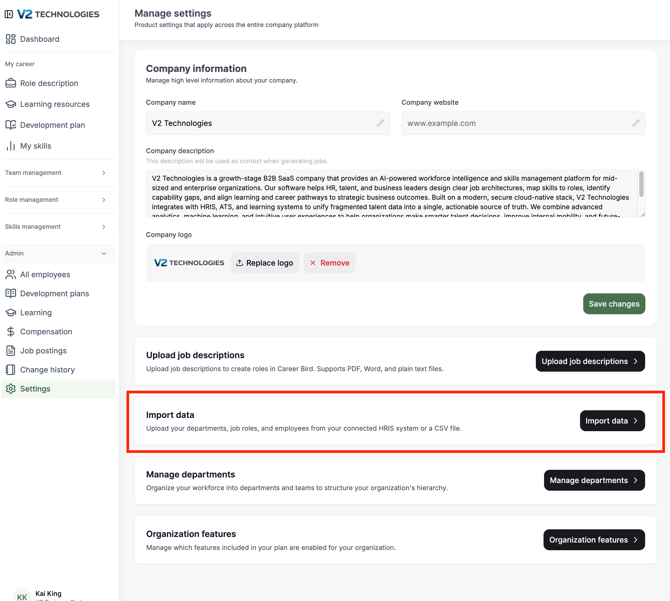
On the Connect your HRIS card, click Set up connection.
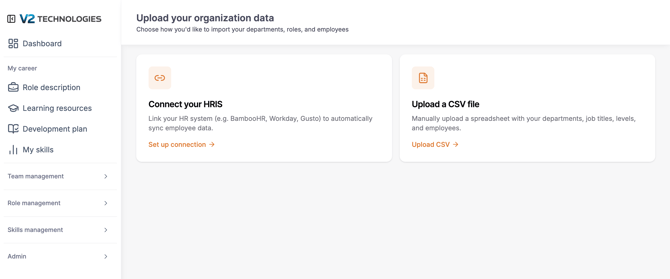
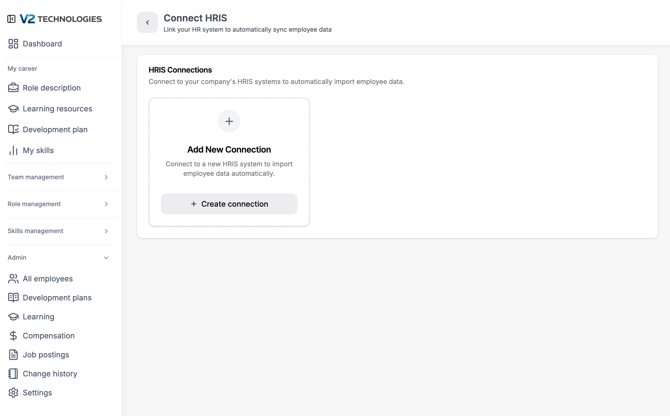
Click "+ Create connection"
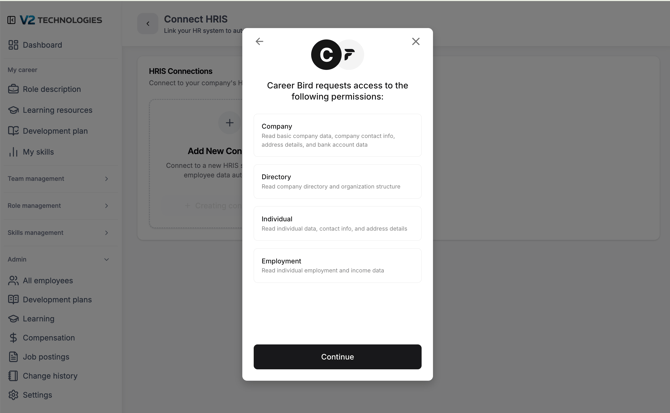
Click Continue
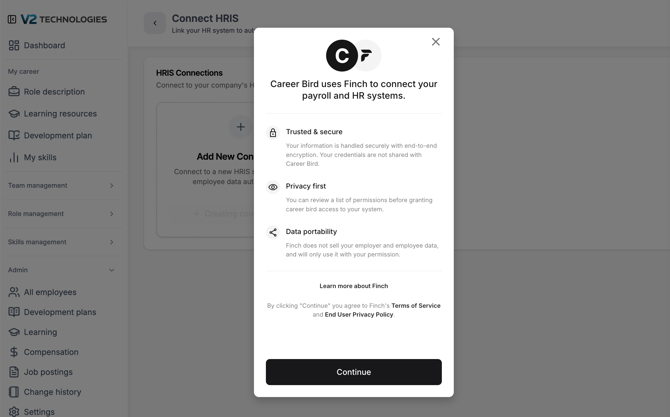
Review and click Continue
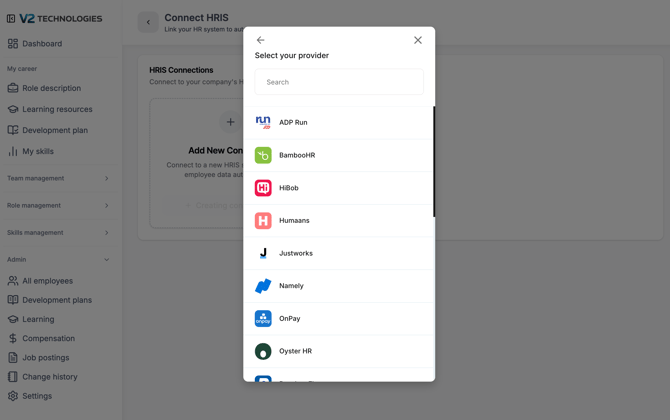
Search for your HRIS provider and select it from the list.
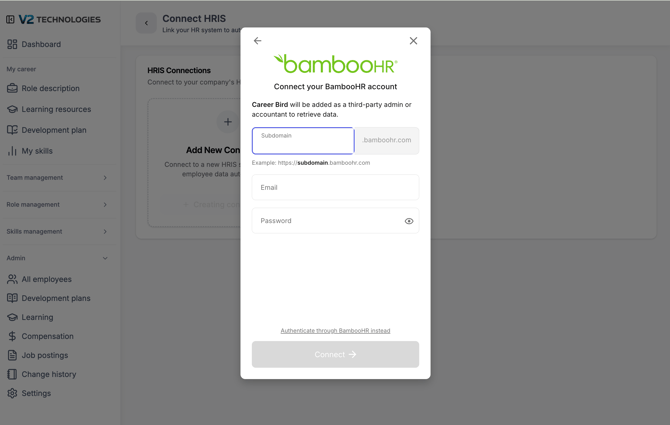
Sign in with your HRIS admin credentials.
- Click Allow to authorize the connection. Career Bird only requests the fields listed above — it doesn't request payroll or compensation data. [CONFIRM: authorization step label]
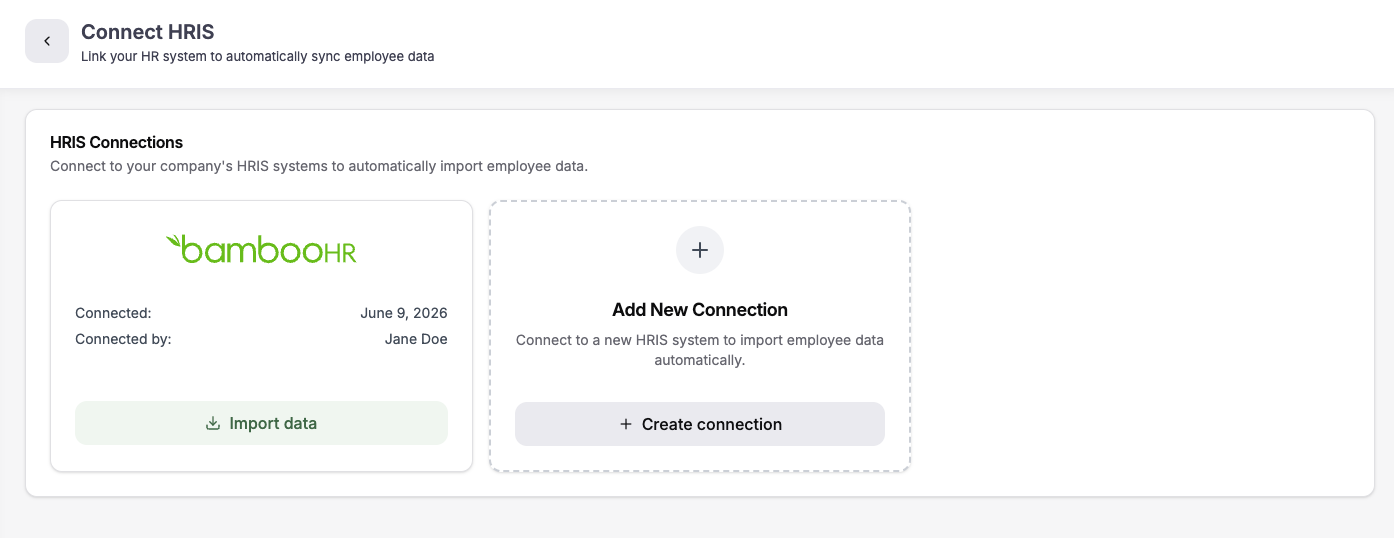
You'll return to Career Bird, where your new connection appears on the HRIS page.
Click Import Data for the connection you want to import from.
What happens next
- Employees are created. Career Bird sets up a profile for every employee in the sync, with their name, email, title, department, and manager. Employees aren't notified — no invitation is sent until you explicitly invite them.
- Existing records are deduplicated. If you've already created employees manually or uploaded them by CSV, the sync matches incoming HRIS records to your existing employees instead of creating duplicates — first by Employee ID, then by email.
- Roles are created from titles. If an employee's title doesn't match an existing role, Career Bird creates one automatically.
- Titles are matched to job descriptions. If you've uploaded job descriptions, Career Bird matches employee titles to titles found in the uploaded job descriptions. Matches are applied automatically — you can review and correct any match afterward in Role Management.
- Current Sync Update - Click the button to import an update
- [FUTURE] The sync runs daily. Career Bird automatically pulls updates from your HRIS every day — new hires, title changes, and department moves. When an employee is removed from your HRIS, Career Bird deactivates them.
Keeping your data secure
Finch is SOC 2 and CCPA compliant, and your data is encrypted both in transit (TLS 1.2) and at rest (AES-256).
Troubleshooting
Your HRIS isn't in the provider list. Finch supports 250+ systems, but a few aren't covered. Contact us at support@careerbird.ai and we'll help you find the best way to get your data in.
An employee is missing after the sync. Check that the employee is active in your HRIS and has an email address on file — employees without an email can't be synced.
An employee appears twice. This can happen when an existing record's Employee ID and email both differ from what's in your HRIS. Update the Employee ID or email in either system so they match — the next daily sync merges the records.
A title matched the wrong job description. Matches can be corrected at [CONFIRM: location]. Updating a match doesn't change anything in your HRIS — the sync only flows one way, from your HRIS into Career Bird.