
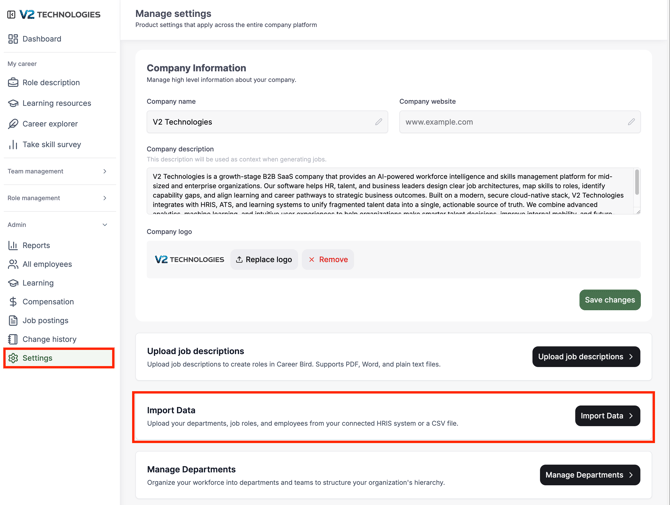
What this page is
The Import Data feature allows admins to bring their organization’s structure into the platform.
You can upload:
- Employee ID
- Employee name
- Employee email
- Employee Title
- Employee Manager
- Employee Department
- Employee Level
This can be done either automatically through an HRIS integration or manually via a CSV file.
How to access it
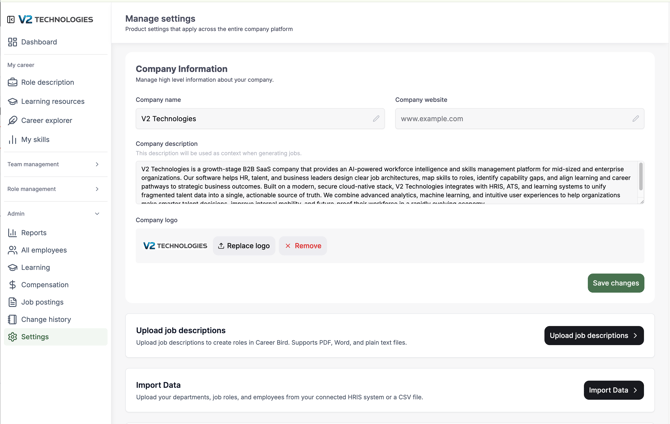
From Settings, click on Import Data.
Two ways to import data
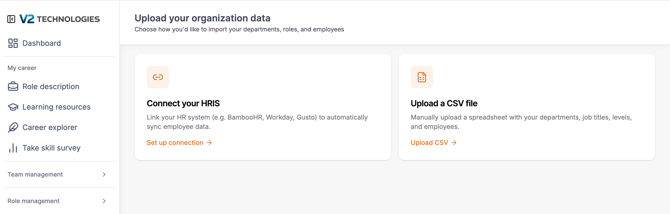
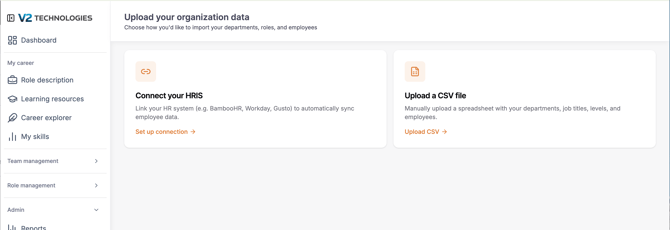
Once inside, you will see two options:
- Connect your HRIS
- Upload a CSV file
Option 1: Connect your HRIS
What this does
Allows you to automatically sync employee and organizational data from your HR system.
Step 1 start connection
Click Set up connection under “Connect your HRIS”.
Step 2 create a new connection
Click Create connection to begin the process.
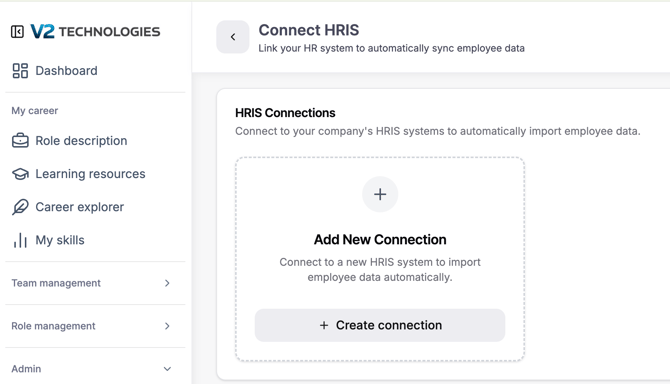
Step 3 review permissions
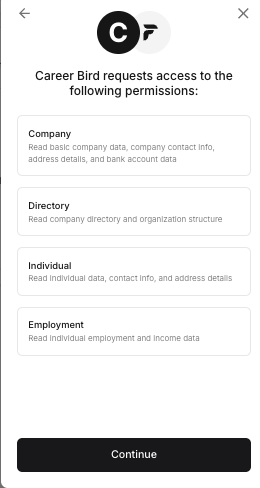
You will be asked to approve access via Finch.
This includes permissions such as:
- Company data
- Directory (org structure)
- Employee information
- Employment data
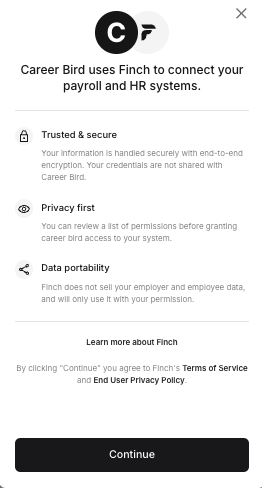
Step 4 select your hris provider
Choose your provider from the list (e.g., BambooHR, ADP, HiBob, etc.)
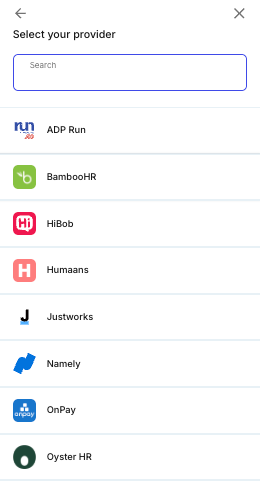
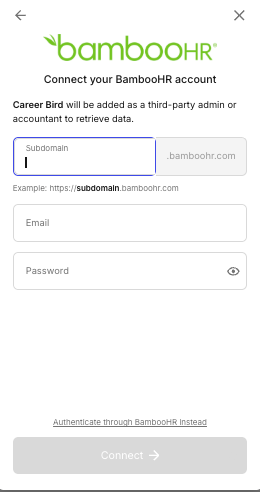
Step 5 authenticate your account
Enter your credentials to connect your HRIS.
Result
Once connected:
- Data is automatically imported
- Future updates can be synced
Option 2: upload a CSV file
What this does
Allows you to manually upload your organization’s data using a structured template.
Step 1 download the template
Click Download template to get the required CSV format.
Step 2 fill in the template
The template includes fields such as:
- Employee ID
- Manager ID
- First name
- Last name
- Department
- Parent department
- Title
- People manager (Yes/No)
- Level
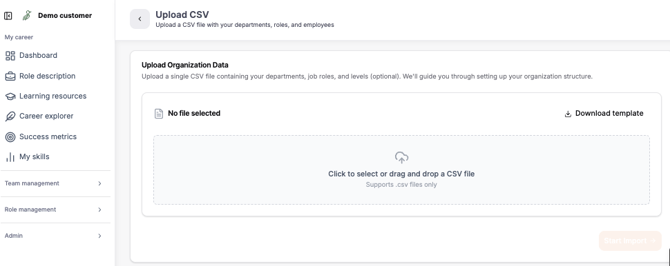
Step 3 upload your file
- Upload your completed CSV
- Or drag and drop into the upload area

Step 4 start import
Once uploaded, click Start Import to process the data.
Important to know
- Data must follow the template format exactly
- Manager IDs must match an existing Employee ID
- Levels and roles should be consistent across entries
- Errors in the file may prevent upload
Best practices
- Use HRIS integration when possible for ongoing sync
- Use CSV upload for initial setup or one-time imports
- Validate your data before uploading
- Ensure reporting structures (manager relationships) are correct
When to use each option
Use HRIS integration if:
- You want automatic updates
- You have a supported HR system
Use CSV upload if:
- You are doing a one-time setup
- You need more control over the data structure
- You don’t have an HRIS integration