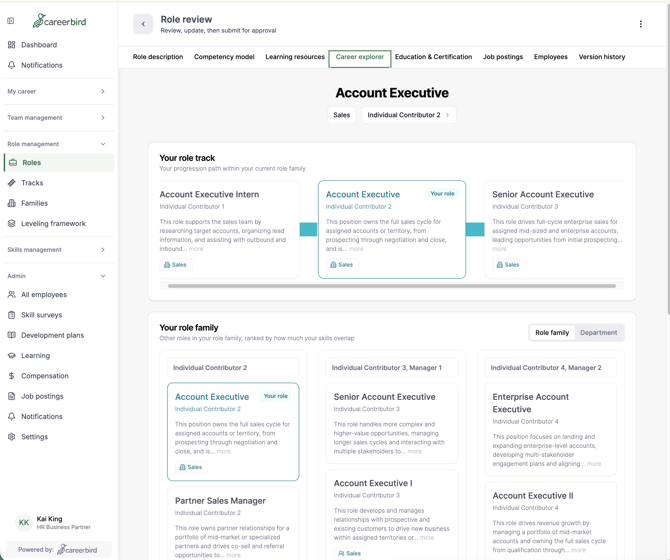
Roles page
Your HR team imports your organization's existing job descriptions into Career Bird as roles. Someone in HR or a designated manager is then asked to review each role and suggest edits. If you're a reviewer, go to Role management > Roles.
The tiles at the top show where every role stands:
- All roles: every role you can see.
- Needs reviewer: roles with no reviewer assigned yet.
- Reviewer assigned: roles with a reviewer who hasn't submitted edits yet.
- Ready for approval: roles whose reviewer has submitted edits, waiting on your admin.
- Published: approved roles that employees can see.
In the list, Reviewer shows who's assigned to each role and Draft status shows what's needed next. Needs Review means the role is waiting on its reviewer. Click a role name to open it and suggest edits.
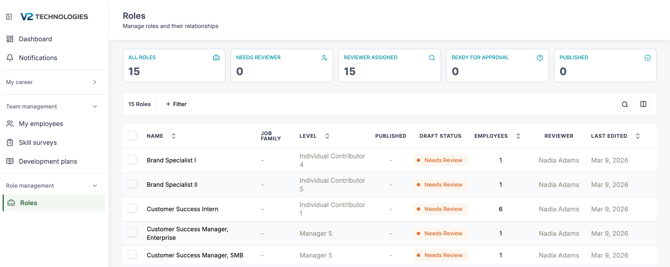
Role detail page
When you open a role you're assigned to review, a You are the assigned reviewer banner appears at the top. The tabs across the top show every part of the role: Role description, Competency model, Learning resources, Career explorer, Education & Certification, Job postings, Employees and Version history.
Start on Role description. Read the description and the Key responsibilities, and ask yourself whether they describe this role as it's done today. When you're ready to make changes, click the banner to open the edit view.
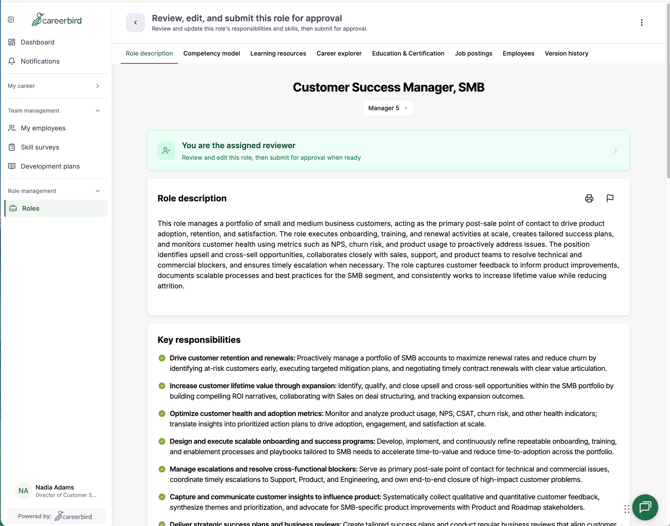
Role edit view
The edit view shows the role side by side. The Current version is on the left, and your Editable version is on the right.
- Click the pencil icon next to Title, Job level, Description or Responsibilities to change it.
- Turn on Show changes to highlight everything you've edited compared with the current version.
- When you're done, click Submit for approval. The role moves to Ready for approval, and your admin reviews your edits before publishing.
Your edits don't change the live role until your admin approves them. Until then, employees in this role still see the current version.
Warning: The trash icon next to Submit for approval deletes your draft edits.
Competency model
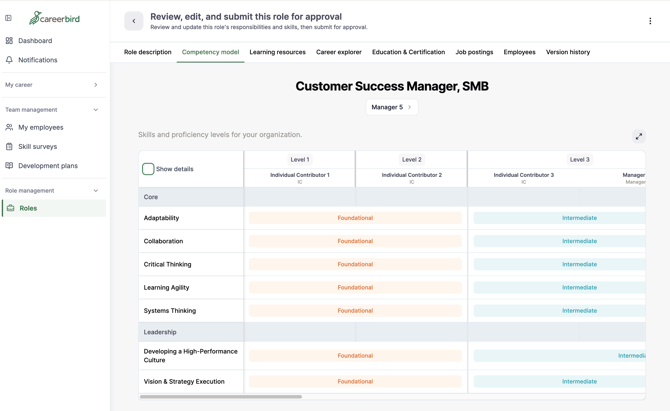
The Competency model tab shows the skills in your organization's competency model, including those specific to this role's job family, and the proficiency level each job level calls for. Skills are grouped into categories, such as Core and Leadership. Each column is a job level, for example Individual Contributor 1 or Manager, and each cell shows the proficiency expected at that level, such as Foundational or Intermediate.
Find the column for this role's level and check that the expected proficiency for each skill matches what the job requires. Select Show details to see more about each skill, or click the expand icon to view the full table.
Learning resources
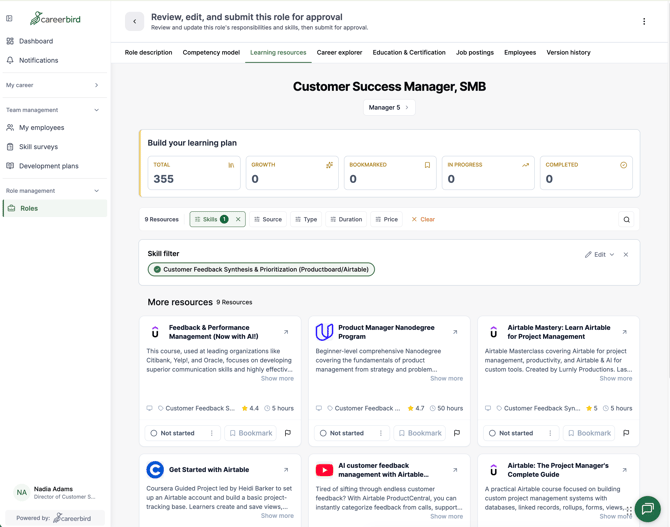
The Learning resources tab lists courses, videos and other resources tied to this role's skills. Use the filters (Skills, Source, Type, Duration and Price) to narrow the list, or the search icon to find a specific resource. Click Clear to reset the filters.
Each resource card shows the provider, a short description, the skill it's tied to, its rating and how long it takes. As a reviewer, check that the resources fit the skills and level of the role. If one doesn't belong, click the flag icon to report it.
The Build your learning plan tiles at the top (Total, Growth, Bookmarked, In progress, Completed) show what the employee will see but do not show details related to any specific employee.
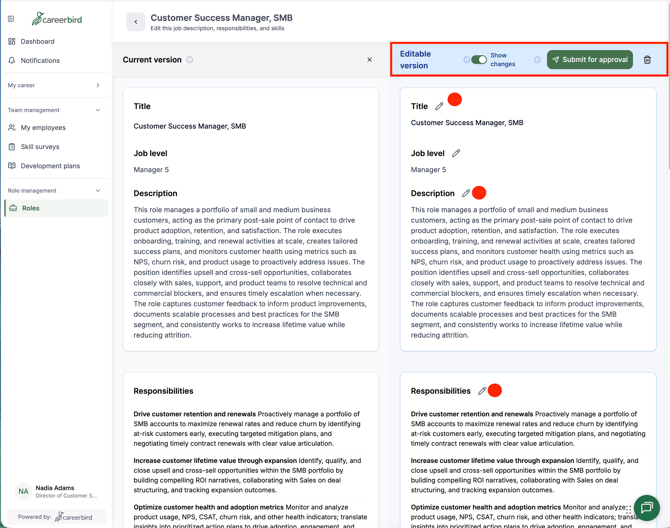
Career Explorer
The Career Explorer tab shows how this role connects to other roles in your organization. It's the same view employees in this role see, so labels like Your role refer to the role you're reviewing.
- Your role track: the progression path within this role's family, from the entry-level role up. This role is highlighted as Your role, with the roles before and after it on either side. Each card shows the role's job level and a short description. Click more to read the full description, or scroll sideways to see the whole track.
- Your role family: other roles in the same family, grouped by job level and ranked by how much their skills overlap with this role. Select Department to see roles across the whole department instead.
As a reviewer, check that the role sits at the right step in its track, and that the roles before and after it make sense as a career path. If a role is in the wrong track or family, let your admin know. Tracks and families are managed under Role management > Tracks and Role management > Families.